
Customer Insight is a feature that helps you understand your customers and the interactions they have had with your company. In this article, you will learn about the different sections of the Customer Insight feature.
When you open Customer Insight, you will see a page like the image below. Here is the explanation:
1. Funnel
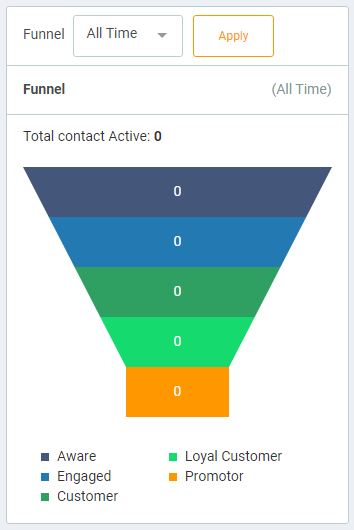
This section is called the funnel. This funnel represents how far a subscriber has engaged with the content you created. There are 5 levels in Customer Insight: Aware, Engaged, Customer, Loyal Customer, and Promoter. Although not an exact reference, each level has the following meanings:
- Aware: Describes the status of a customer who is starting to become aware of your product.
- Engaged: Describes the status of a customer who is beginning to engage with your business.
- Customer: Describes the status of a customer who has made a transaction with your business.
- Loyal Customer: Describes the status of a customer who has made ongoing transactions with your business.
- Promoter: Describes the status of a customer who is very loyal to you.
2. Contact Lost
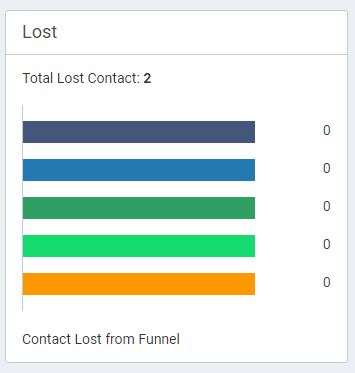
This section explains your customers who have chosen to become inactive with you. They may no longer be involved with your business or may have unsubscribed. You can see the ratio of inactive contacts in this section based on the funnel status of those contacts. For example, if a contact has an aware status, after the contact becomes inactive and you choose to mark them as inactive, the lost contact will be displayed in red in the Contact Lost section.
3. Manage Funnel
The "Manage Funnel" button allows you to configure the Customer Insight feature. You can set the default status of contacts, change statuses based on labels, and manage lost statuses.
4. Contact Data
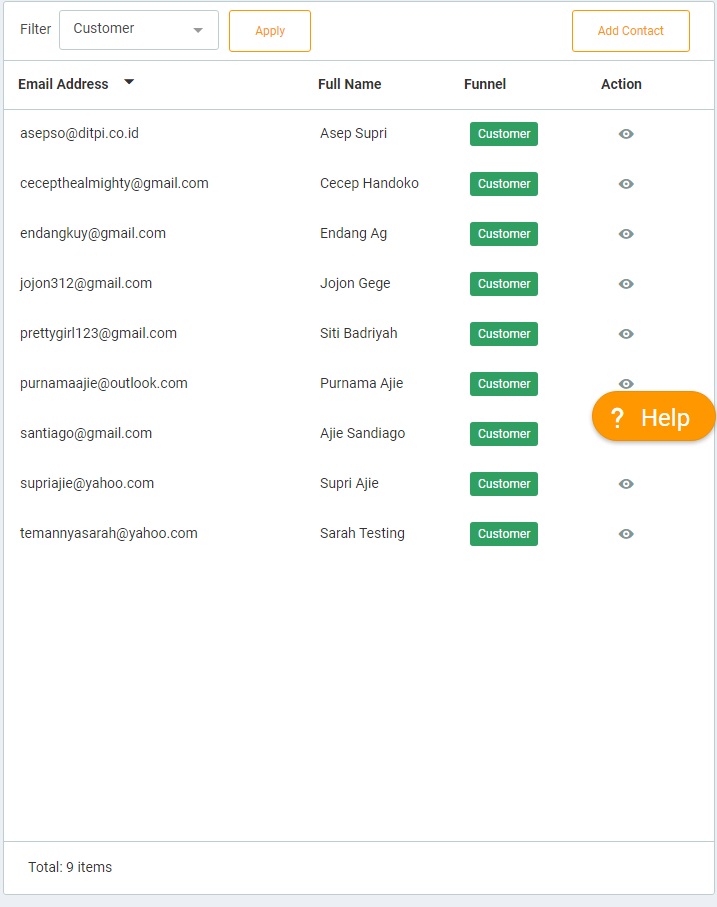
The fourth section contains your contacts from the Contact Book along with their Funnel status. If you click the Action icon, it will display the contact's personal information and their activity.
If you click the Action button on a contact, a page like the following will appear:
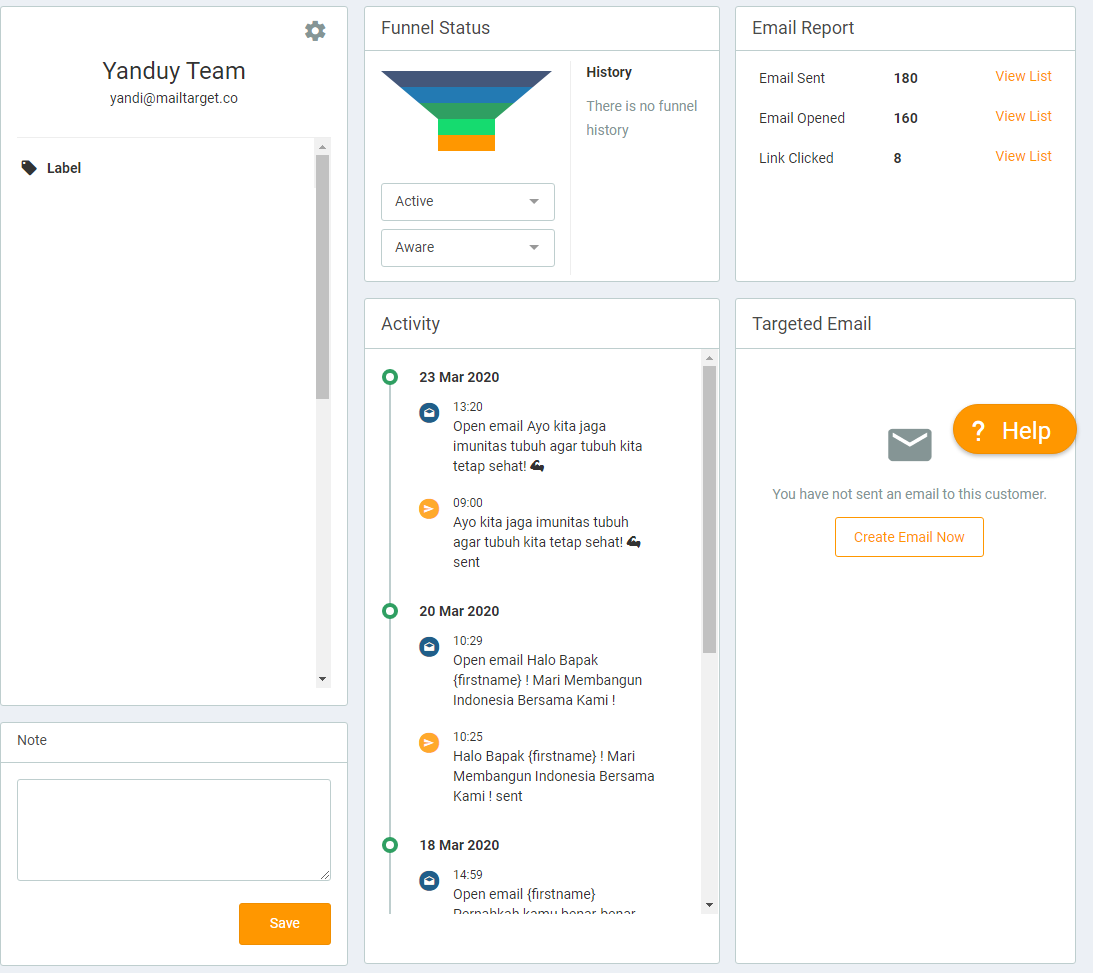
- This section displays the personal data of your contact along with the date they subscribed and the source of their subscription. For example, if they subscribed from Form A that you created, the source of their subscription will be displayed.
- Contains the Funnel status of the contact. You can change the Funnel status of a contact. For example, if a contact has an aware Funnel status and you want to change it to engaged, you just need to change it. Additionally, it includes the Funnel status history to know the contact's status over time.
- Contains the email campaign report that you have sent, such as sent rate, click-through rate, and open rate.
- This section allows you to add notes about a contact. These notes cannot be read by the contact.
- This section shows the contact's activity related to emails. For example, if you sent an email marketing to contact A, the activity will be displayed for contact A, showing that you sent an email to that person. When the email is opened or if contact A clicks a link in the email, it will be displayed in the activity box.
- Targeted Email is a feature that you can use to send personalized emails to a specific contact. This section will show the list of emails you have sent to the contact. You can only send plain emails here.